
Slack
Post a Sendly project's delivery alerts into one Slack channel, and check its delivery stats and domains with the /sendly command.
The Sendly Slack app posts a project's delivery alerts into one Slack channel you choose:
bounce and complaint spikes, failed sends, finished campaigns, domain verification results,
manual suppressions and usage-limit warnings. In that channel, the /sendly command answers with
the project's delivery figures and the state of its sending domains. A post carries counts and
settings only, never a recipient's address, a subject line or a message body.
Connecting a project
- In Sendly, open Settings → Slack for the project. You need to be an admin of the project.
- Select Add to Slack. Slack shows what the app asks for and lets you pick the channel it will post to.
- Approve. You come back to Settings → Slack, which shows the workspace and channel.
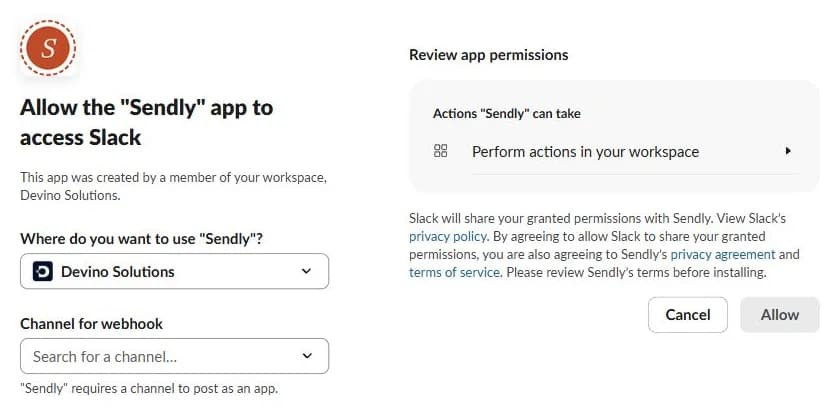
Slack's approval screen names the app, the workspace and the channel the app will post to:
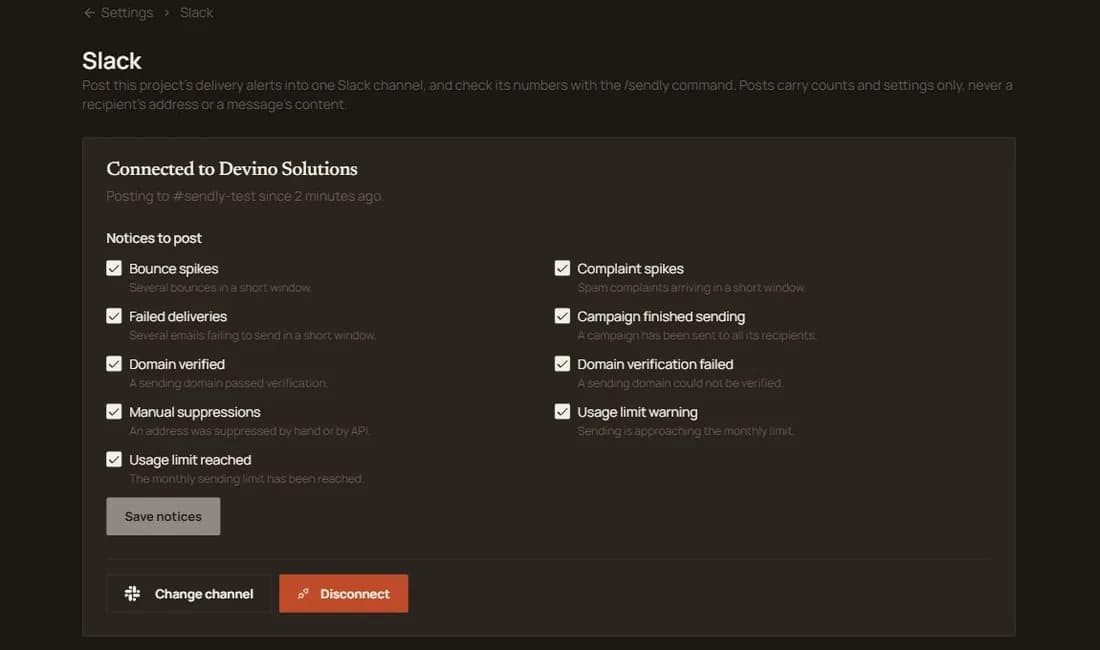
Once connected, Settings → Slack shows the workspace, the channel and the notices that post:
Each project posts to one channel. Installing again from the same page replaces the connection, which is how you move the alerts to another channel. Several projects can post into the same workspace, each to its own channel or to a shared one.
If you start the install from a link outside Sendly, such as the app's page in Slack, Sendly does not know which project you mean. After you approve, it asks you to choose one of the projects you administer. That step only works in the browser that started the install, within 30 minutes of starting it.
Which notices post
All of them are on when you connect. Turn any of them off under Settings → Slack → Notices to post.
| Notice | Posts when |
|---|---|
| Bounce spikes | 5 or more bounces within 15 minutes. |
| Complaint spikes | 2 or more spam complaints within 15 minutes. |
| Failed deliveries | 5 or more failed sends within 15 minutes. |
| Campaign finished sending | A campaign has been sent to all its recipients. |
| Domain verified | A sending domain passed verification. |
| Domain verification failed | A sending domain could not be verified. |
| Manual suppressions | An address was suppressed by hand or through the API. |
| Usage limit warning | Sending is approaching the monthly limit. |
| Usage limit reached | The monthly sending limit has been reached. |
The three spike notices are digests: one post says how many events arrived in the window, and the same kind does not post again for an hour. A manual suppression posts once and then keeps the channel quiet for 15 minutes, so suppressing a whole list through the API does not post once per address. The post says how long the quiet period lasts.
The /sendly command
| Command | Answers with |
|---|---|
/sendly stats | How many emails were sent recently, the delivered, bounce and complaint rates, and this month's usage against the limit. |
/sendly domains | Each sending domain and whether it is verified. |
/sendly help | The list of commands. |
The answer is visible only to the person who typed the command. The command answers for the project connected to the channel it is typed in. Typed in any other channel, it says the channel is not connected and does not name the right one. Typed in a channel that two projects post to, it says so instead of picking one.
/sendly stats reads figures Sendly recounts every 15 minutes, not a live count, so a recent
send may not be in it yet. The answer says when the figures were counted.
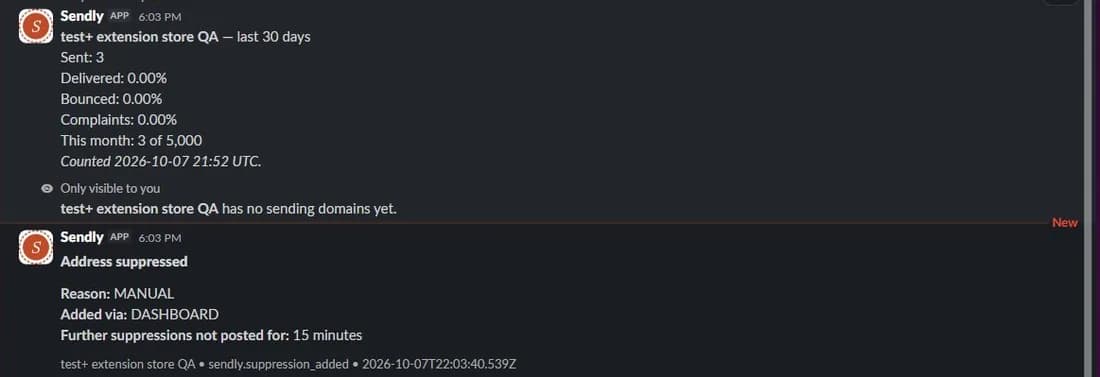
In the connected channel, /sendly stats and /sendly domains answer to you alone, and a notice such as a manual suppression posts for everyone in the channel:
What the app can do in Slack
Sendly asks Slack for two permissions and nothing else:
| Permission | Why |
|---|---|
incoming-webhook | To post to the one channel picked during install. It cannot read that channel or post anywhere else. |
commands | To add the /sendly command. |
The app cannot read messages, list channels or members, or see who is in the workspace.
What Sendly stores
For each connected project, Sendly keeps:
- the workspace's name and ID, and the channel's name and ID;
- the channel's posting address and the app's token for the workspace, both encrypted;
- which notices are on;
- which Sendly user connected it.
It does not store the Slack user ID of whoever approved the install, and it never shows the posting address or the token in the dashboard, the API or a log.
Disconnecting
- From Sendly: Settings → Slack → Disconnect. Sendly deletes the connection at once. When no other Sendly project uses the same workspace, it also revokes the app's token at Slack.
- From Slack: remove the Sendly app from the workspace. Slack tells Sendly, and Sendly deletes every project's connection to that workspace.
If Slack reports that the channel no longer exists (it was deleted, or the app was removed from it), Sendly deletes the connection the next time it tries to post. After five failed posts in a row it stops trying for five minutes, so a Slack outage does not delay anything else.
Troubleshooting
- "This channel is not connected to a Sendly project." The command was typed outside the channel the app posts to. Run it in that channel; Settings → Slack names it.
- "That install link expired or was opened in another browser." The install has to finish in the browser that started it, and Slack's approval screen has to be answered within ten minutes. Start again from Add to Slack.
- "The install was started from a different Sendly account." You signed in as someone else while Slack was open. Sign in as the account that selected Add to Slack, or start again.
- "Slack is not set up on this deployment." The Sendly you are using has no Slack app registered. On sendly.now it is always set up; on a self-hosted Sendly, see below.
Self-hosting
A Sendly deployment without a Slack app still starts, and every Slack address answers 503 with
the code SLACK_NOT_CONFIGURED. To turn it on:
- At api.slack.com/apps, choose Create New App → From a
manifest and paste
apps/web/integrations/slack/manifest.jsonfrom the Sendly repository, withapp.sendly.nowreplaced by your dashboard's host in all three URLs. - From the app's Basic Information page, copy the client ID, client secret and signing
secret into
SLACK_CLIENT_ID,SLACK_CLIENT_SECRETandSLACK_SIGNING_SECRET, and restart the web app. - Optionally, under Manage Distribution, set the direct install URL to
https://<your dashboard host>/integrations/slack/install.
All three variables are needed. With any of them missing, Slack stays off.